
Sign in required — You must be signed in with your LF ID to make a donation.
Starting a donation
Open any published initiative page and click the Donate button. A drawer will open with the donation form.
Step 1 — Choose an amount and frequency
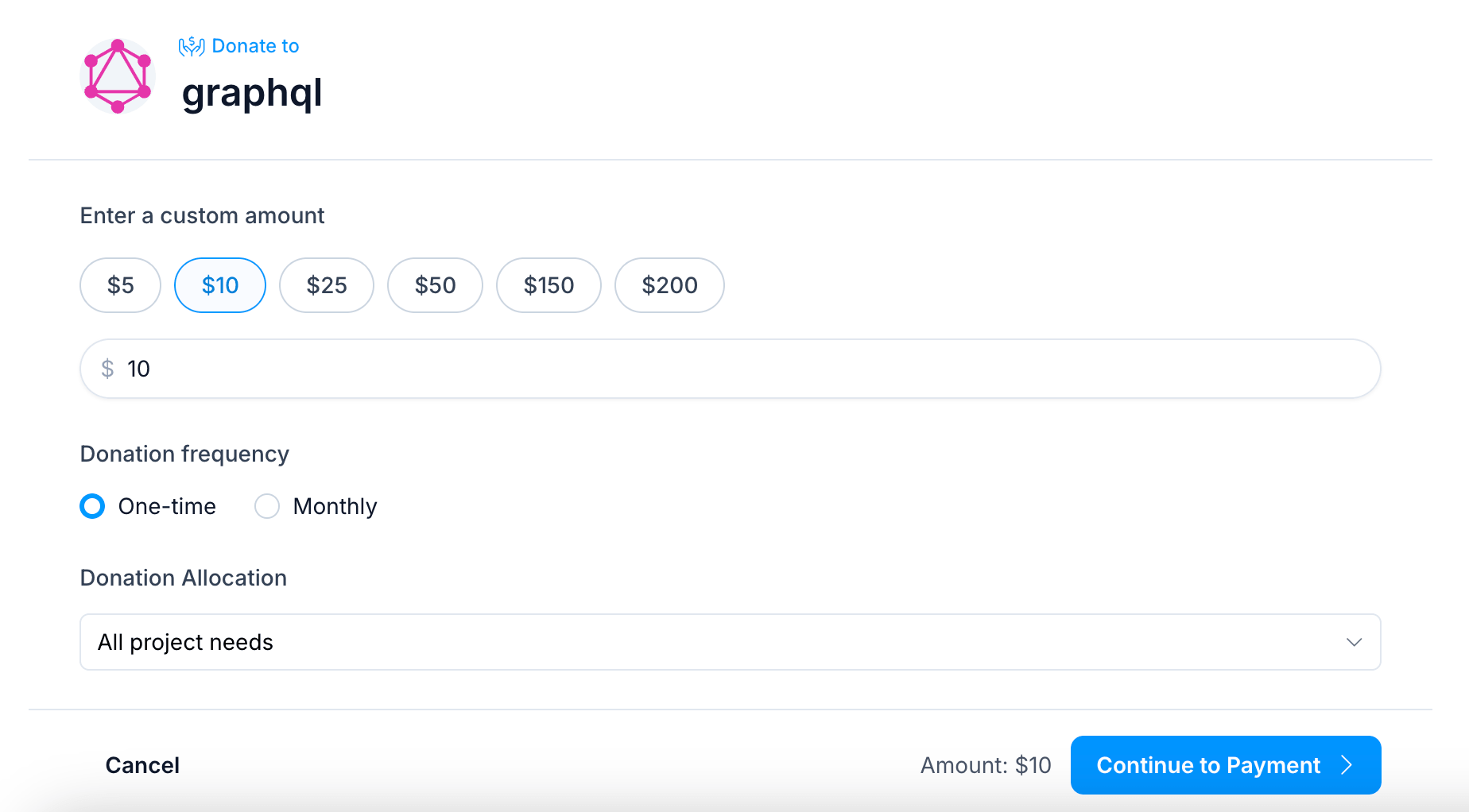
Select a preset amount or enter a custom amount in the input field.
Then choose your donation frequency:
- One-time — a single charge processed immediately
- Monthly — a recurring charge on the same date each month
Optionally, you can allocate your donation to a specific funding goal (e.g. Development, Marketing, Travel) if the initiative has defined funding categories. By default your donation goes toward all project needs.
If the initiative offers sponsorship tiers, you'll see a set of tier cards (e.g. Platinum, Gold, Silver, Bronze) instead — select one to set your amount to that tier's goal, or choose a custom amount below the tiers.
Step 2 — Choose who you're donating as
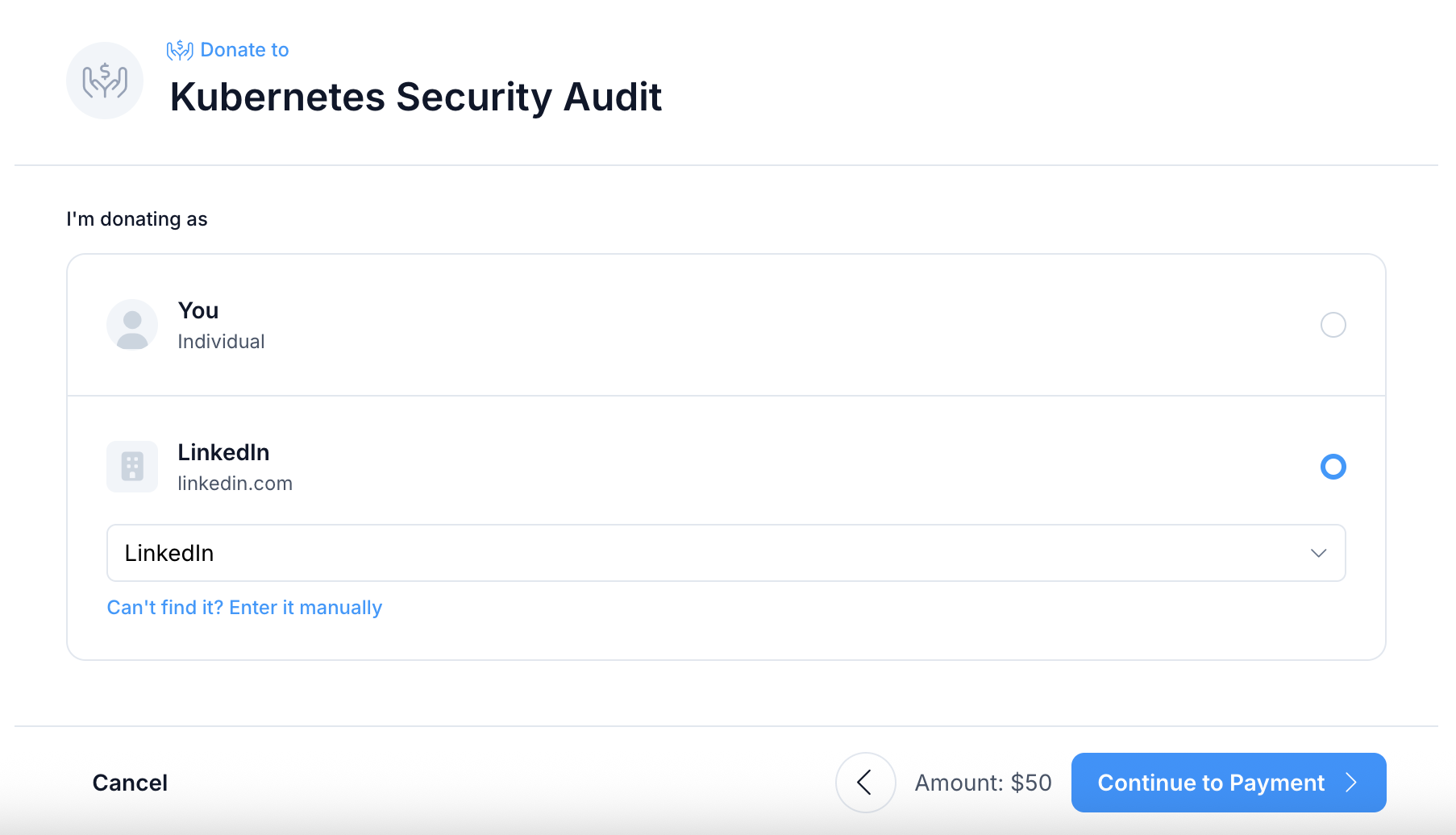
Under I'm donating as, pick one:
- Individual — the donation is credited to you, with your name and avatar.
- An organization — the donation is credited to a company or organization.
To donate on behalf of an organization, select An organization and search for it by name. Results show each organization's name and website. Pick the right one; its name and website then appear in the organization row.
If your organization isn't in the results, click Can't find it? Enter it manually and type:
- Organization name, e.g. Acme Inc.
- Website, e.g. acme.com
Click Search instead to go back to the search.
A few things to know:
- The organization is shown publicly as you entered or selected it. There is no check that you work there.
- You can't change the organization after the donation is made. Your confirmation email shows it.
- For a monthly donation, every charge is credited to the organization you chose when you subscribed.
Step 3 — Payment
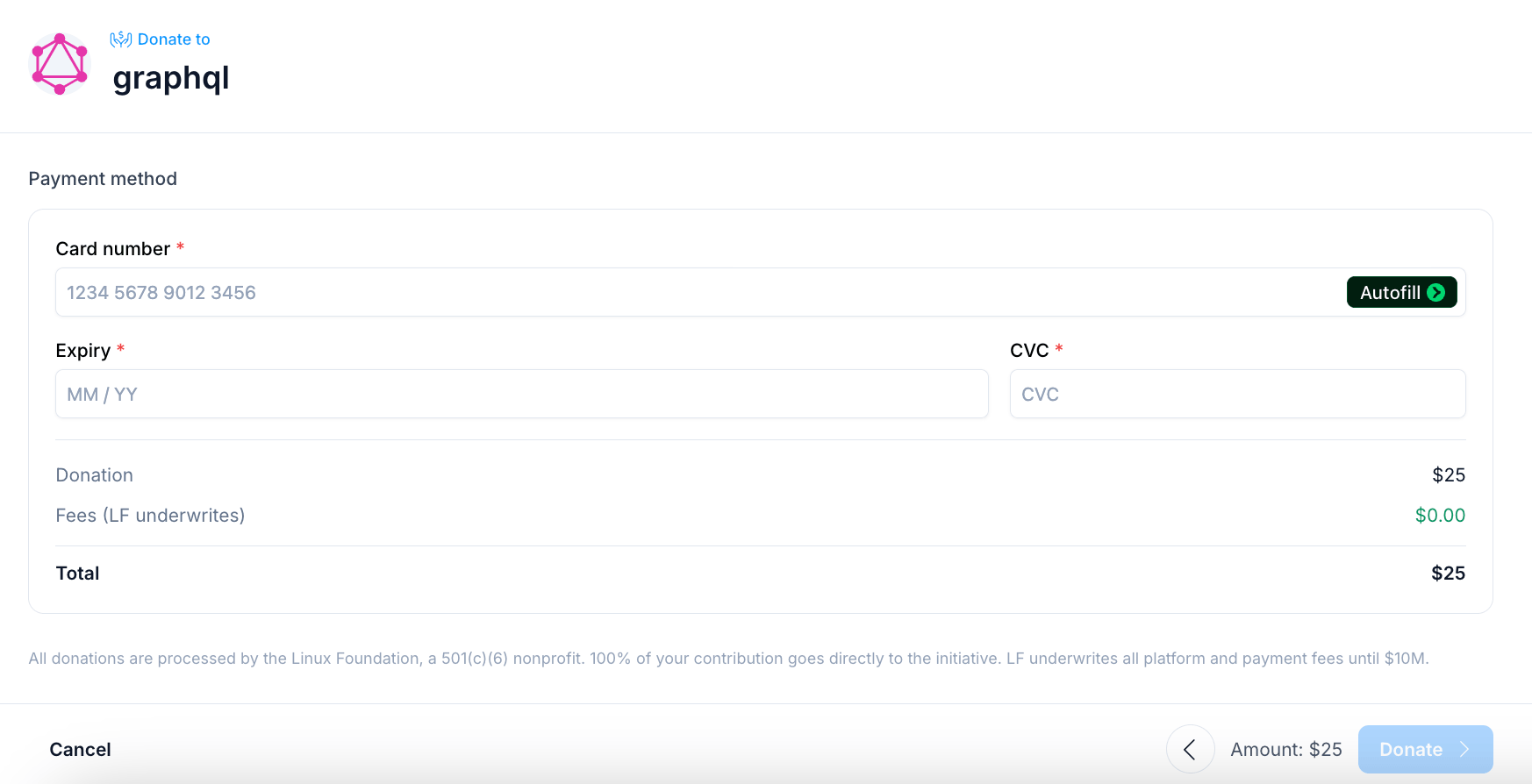
Credit card is the only accepted payment method. Paying by invoice is not supported.
Enter your card details:
- Card number
- Expiry date
- CVC
If you have previously saved a card, it will be shown here. You can use it directly or click Use a different card to enter new details.
Order summary — The drawer shows a breakdown of your donation amount and total. The Linux Foundation underwrites all transaction fees, so 100% of your donation goes to the initiative.
Click Donate to process your payment. For cards that require additional verification (3D Secure — an extra authentication step your bank may require), you may be prompted to authenticate before the payment completes.
Anonymous donations
LFX Crowdfunding does not currently offer a donor-selectable anonymous option. Your name and avatar, or the organization's name if you donated on behalf of one, will be displayed publicly on the initiative's backer list. If your donor information is unavailable at the time of processing, your name will appear as Anonymous on the initiative page.
After donating
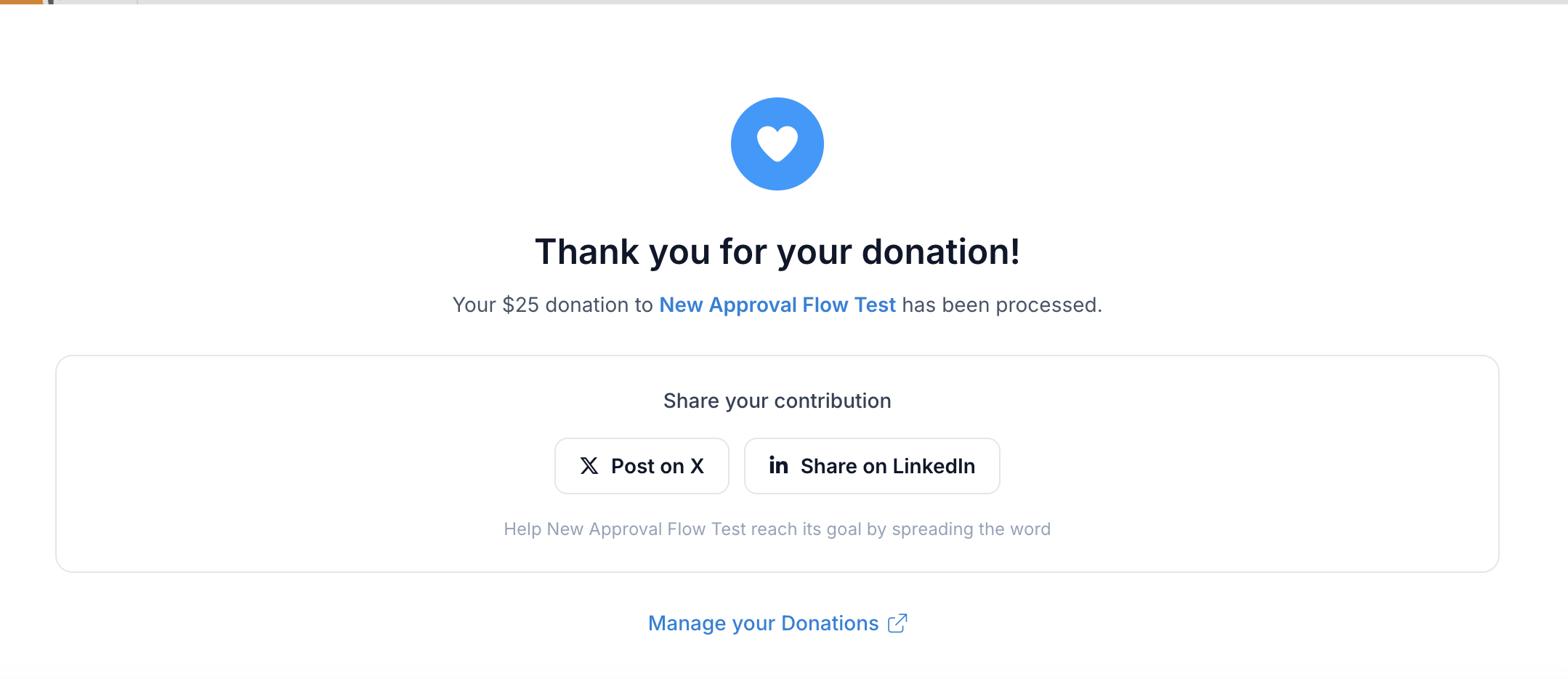
Once your payment is processed, you will see a confirmation screen with the initiative name and amount. From there you can share your donation on X or LinkedIn, or go to My Donations on LFX to view your giving history.
An email acknowledgement is sent automatically after each successful payment.
Related sections
- Managing Your Donations — view history and cancel subscriptions
- Sponsorship Tiers — how fixed giving levels work
- Backers — how your name appears on the initiative page
- Payment Account — update your saved card